Only with the required image rights and that adult’s informed consent for the specific processing and intended use. A photo being public does not make it authorized for intimate AI generation.
Image input, video output
| Input | Authorized source image of consenting adults and a motion prompt |
|---|---|
| Output | A new generated video guided by the source image |
| Source image | Use the image formats and file size accepted by the selected setup; check the requirements in the form. |
| Free starting balance | 25 free Credits after registration and sign-in, usable for images or videos. Compare the request cost with your balance. |
| Pricing | The cost beside Generate applies to the selected model and settings. |
| Safety | Clearly adult participants and informed consent for any real-person source. |
Model limits and output rights
Model and output limits
Model safety rules determine whether a request can run. Explicit-content support and output controls vary by model. Direct video continuation and other advanced features may be unavailable.
AI output can contain errors or third-party material. Input permissions and rights to distribute or use the result commercially remain your responsibility; generation alone does not clear those rights.
Animate an image you have permission to use.
Image to porn video uses your authorized image as the starting reference. The motion prompt directs what changes over time. NSFW image-to-video support varies by model; faces, clothing and backgrounds can drift during generation.
Give an authorized frame a motion brief
A motion brief should add time and movement to the source, not describe a replacement scene. Resolve image permissions before uploading.
- 01
Check permission and the frame
Confirm clearly adult subjects, image rights and informed consent for the intended AI processing. Check the crop and the input requirements shown in the form.
- 02
Describe what moves
State a subject movement or camera change. Do not ask the motion prompt to rebuild every detail already visible in the source.
- 03
Review before using the result
Check the live setup and Credits, submit, then inspect identity, hands, framing and motion in the finished video.
Three motion briefs for a source frame
These illustrative stills explain motion briefs. They are not before-and-after results, and the suggested prompts were not verified as the source of these images.
Swipe to compare the three examples.
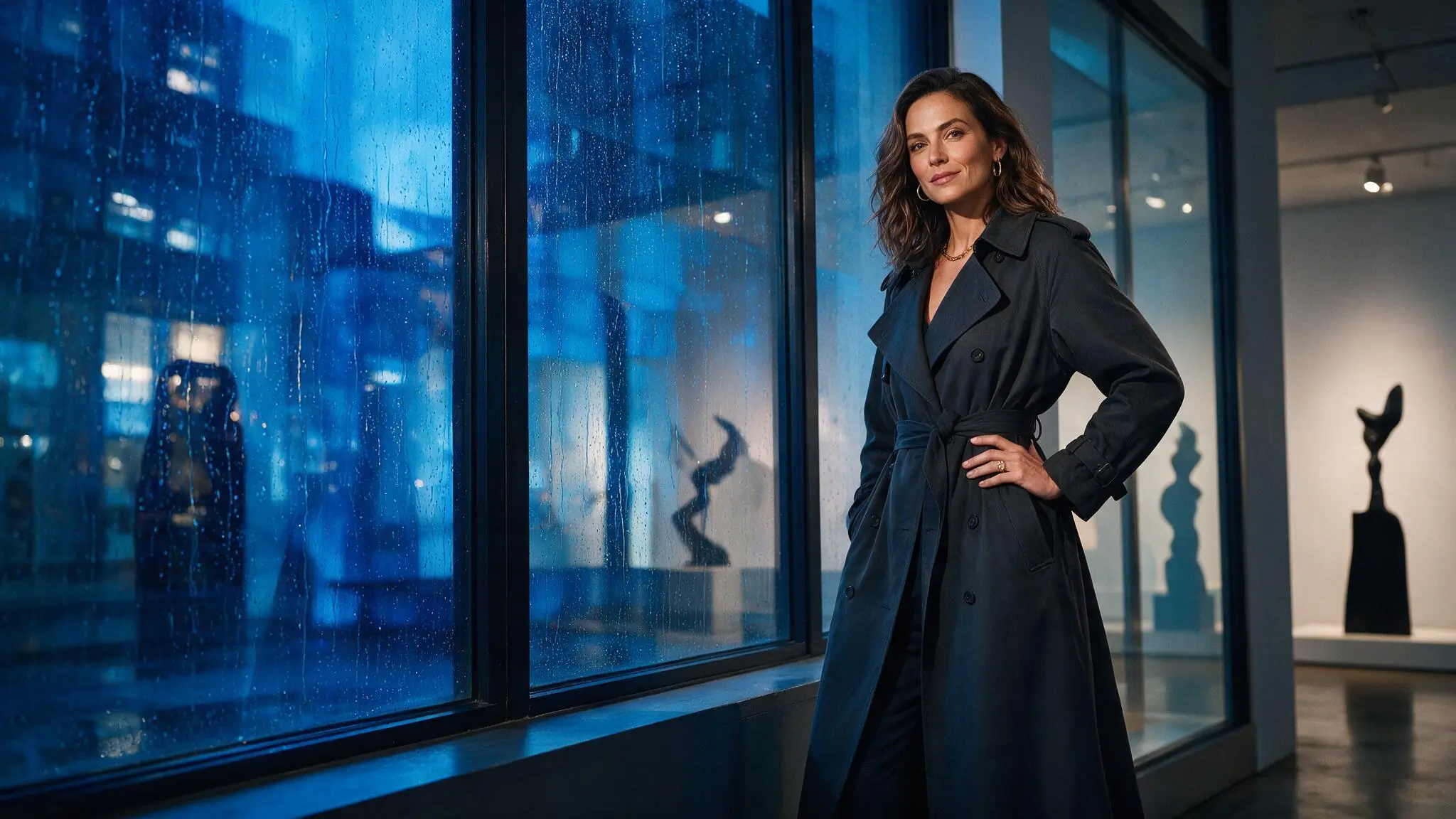
A gentle portrait push-in
PromptAnimate an authorized adult portrait with a slow camera push-in and restrained posture change; keep the composition calm.
A small camera move makes it easier to judge visible source drift.
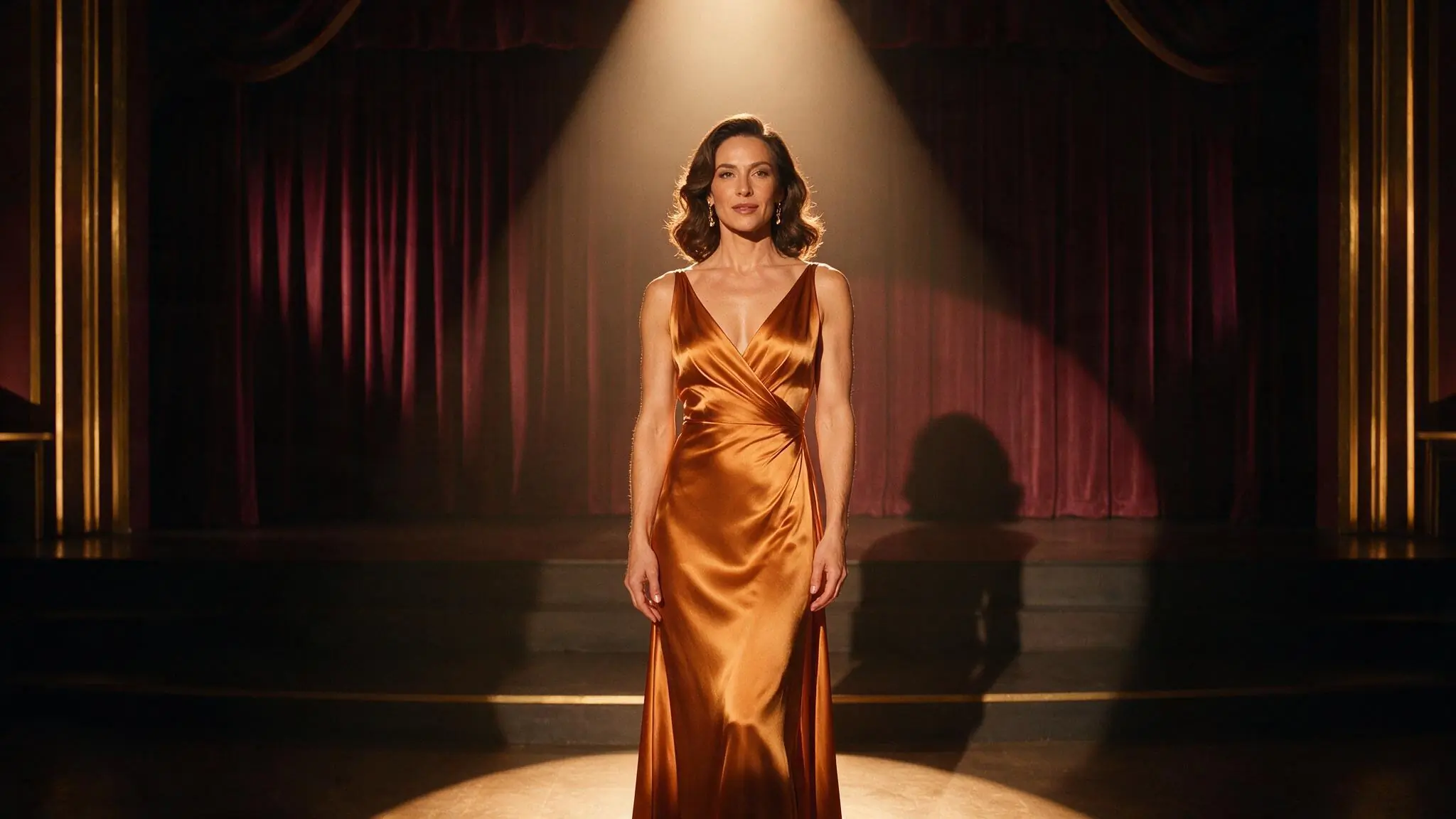
A stage silhouette in motion
PromptAnimate an authorized adult silhouette with one slow turn and a steady wide camera; retain a readable outline.
A simple outline helps isolate the requested subject movement.
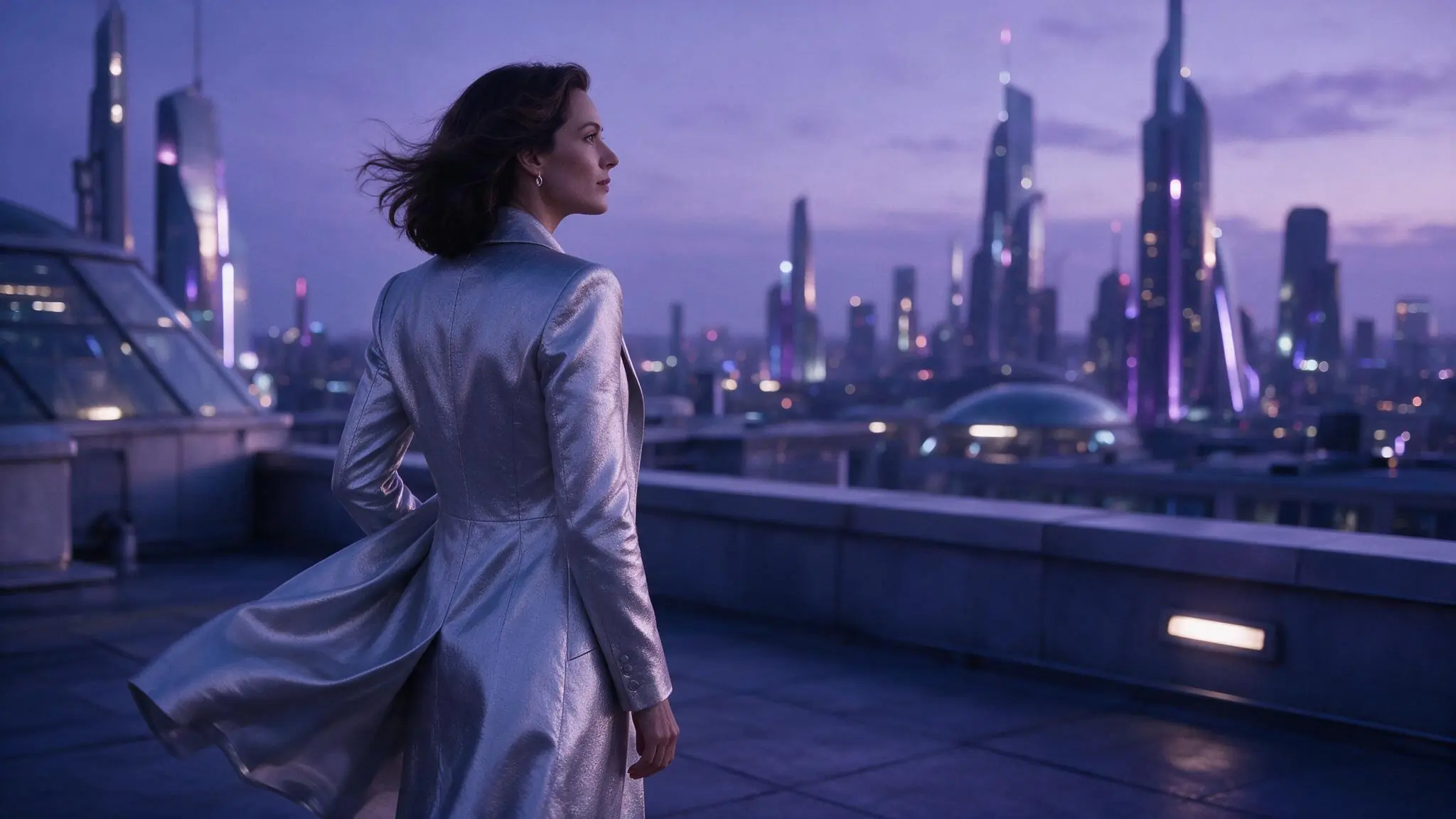
Subtle movement in a wide frame
PromptAnimate an authorized adult rooftop image with light fabric movement and a fixed camera; keep the surrounding space readable.
The brief asks for one small change rather than a new scene.
Match the setup to the source
Start with a crop close to the source and a movement you can evaluate. More motion asks the model to reconstruct more unseen detail.
| Goal | Focus on | Why it helps |
|---|---|---|
| Test source consistency | Restrained motion and a short available duration | Small requests make visible changes easier to inspect. |
| Keep the composition | A supported aspect ratio close to the source | A similar crop avoids introducing an unnecessary framing change. |
| Direct the camera | One camera instruction | Conflicting moves can make the result difficult to evaluate. |
| Compare attempts | The same source and model | Revise the motion brief without changing every input. |
Check source drift before adding motion
Compare the source and result before changing the brief. Note whether the problem is in identity, framing or motion.
- The face or clothing changes
- Use a clearer authorized source and reduce the requested movement. Review all identity details.
- The subject leaves the crop
- Adjust the framing or simplify the movement in a new request.
- The camera overwhelms the scene
- Use a fixed camera or one gentle movement.
- The upload is rejected
- Check the displayed format and size requirements, adulthood and permission; use different material when those facts are uncertain.
Image to Video questions
Answers specific to this tool and its input.
No. The model creates a new video from the image and prompt. Review identity, clothing, hands, background and crop before downloading or sharing.
Describe the change you want: subject movement, camera movement or pace. Keep the instruction specific to the source instead of restating every visible detail.
Only if it is permitted by the selected model and Content Guidelines. Every depicted person must be clearly adult, and a real-person source requires the necessary rights and informed consent. The form shows the accepted file requirements.
Compare the displayed cost with your signed-in balance. Some setups cost more than the starting reward. Choose a lower-cost option or review Pricing if more Credits are needed; the reward does not guarantee one completed video.
Check the upload requirements and the selected model. Use a different accepted source for an input rejection. If the model list failed to load, retry it; if no model is available, choose another tool or return later.
Start with your authorized frame.
Upload the authorized frame and name what should move.